Mellow
Mellow is a cute pixel-art desktop companion for Windows that listens, speaks…
publik verified: the founder reviewed this exact version for malware and approved it
by 

How to install Mellow
Every step written out. No terminal experience needed. Pick your setup.
README
Open in GitHub
Mellow
A small pixel-art dog who lives on your Windows desktop.
Talk naturally, ask for help, stay focused, or keep him around just for company.



Mellow is an open-source desktop companion with a real personality and a useful set of hands-free tools. He can listen and answer out loud, understand what is on your screen, point you toward controls, open apps and websites, manage focus sessions and reminders, transcribe meetings, and react with expressive pixel-art animations.
You choose how much intelligence Mellow has and where it runs. Use local models, connect an OpenAI-compatible provider, use an existing Claude Code or Codex subscription, or disable AI entirely and keep only the pet.
Mellow Demo
https://github.com/user-attachments/assets/8cb9e786-4c55-4077-bd6f-3200aedc5f61
What Mellow can do
- Talk naturally. Hold
Ctrl+Shift+Space, speak, and hear Mellow answer out loud. - See when invited. Mellow can inspect the active screen for questions such as “what is this?” without continuously recording it.
- Point things out. Ask where a control is and Mellow's bone pointer moves to the relevant place on screen.
- Help around the desktop. Open apps, folders, and websites, play media, or adjust one application's volume.
- Write for you. Put your cursor in any text box, speak, and Mellow types it in. He never presses Enter, so nothing sends until you do.
- Keep you on track. Set reminders and run configurable Pomodoro focus sessions directly from the pet.
- Take meeting notes. Transcribe your microphone and meeting audio, optionally label the remote speakers separately, generate structured notes with your chosen answer engine, and export the transcript or notes.
- Feel alive. Pet, drag, wake, and watch Mellow react through idle, listening, thinking, talking, sleeping, peeking, and stretching animations.
- Look how you like. Recolour Mellow's coat so he stays easy to see against your wallpaper.
- Stay up to date. Check for new versions and install them without leaving the app.
- Work without AI. Pet-only mode keeps the companion, reminders, and focus tools without downloading models or contacting an AI service.
Mellow in action
| Cursor tracking | Petting | Hunt mode |
|---|---|---|
 |
 |
 |
| His eyes follow your cursor around the desktop. | Give him a pet and watch the hearts appear. | Move quickly and Mellow gives chase. |
| Shake reaction | Pomodoro timer | Reminders |
 |
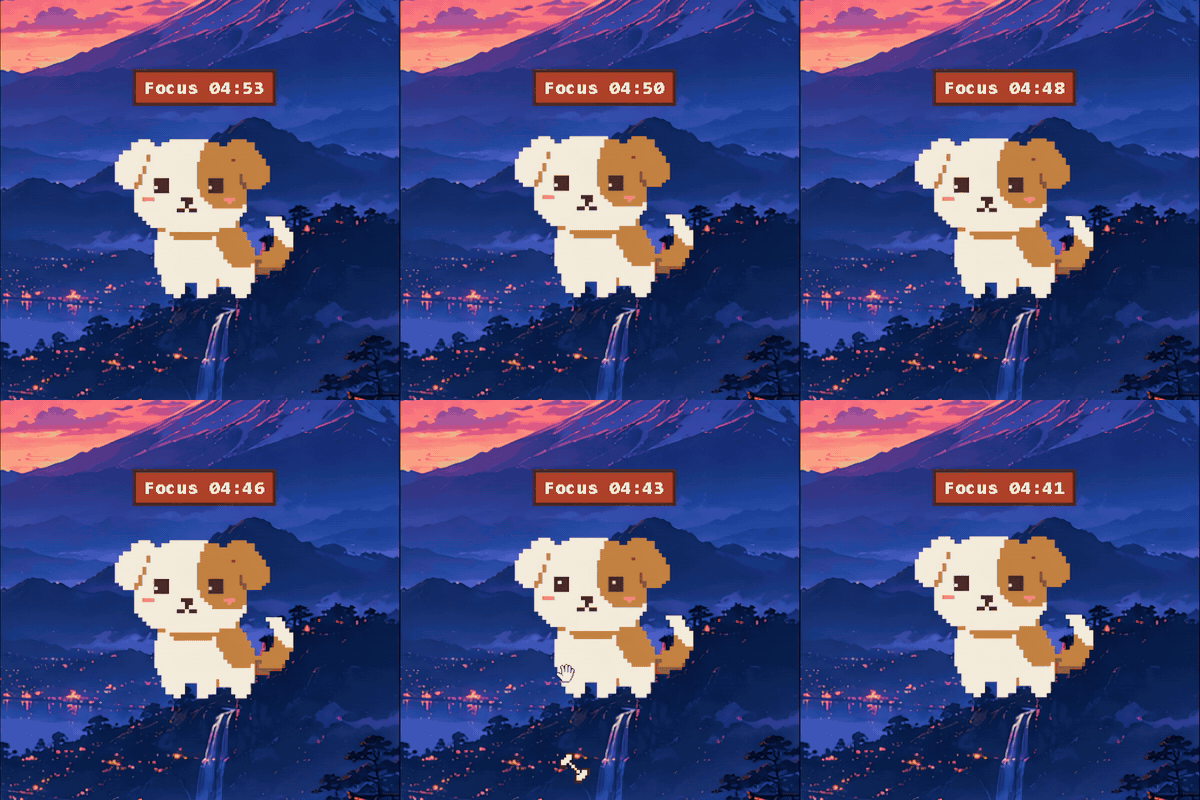 |
 |
| Shake him around and he lets you know. | Stay focused with work and break sessions. | Set reminders and Mellow gets your attention. |
| Peek mode | Meeting notes | Stretch & yawn |
 |
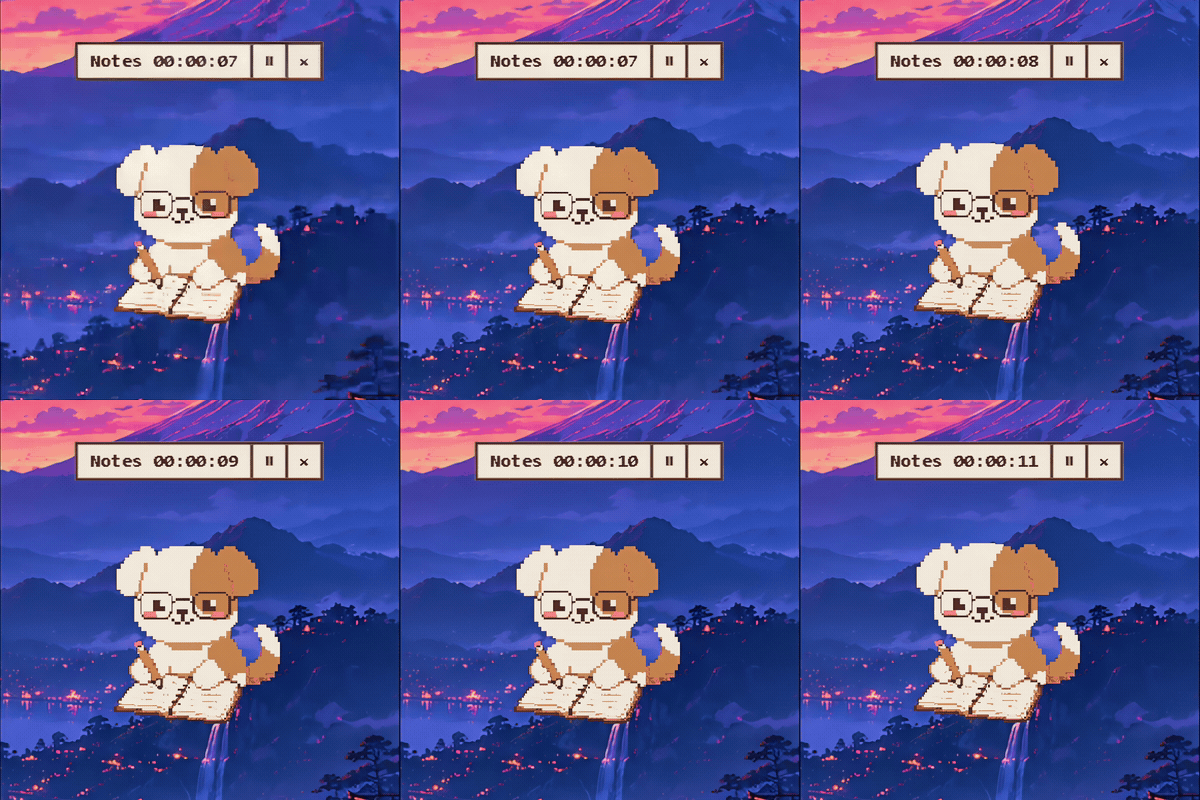 |
 |
| Need some space? Mellow tucks himself against the screen edge. | Stay in the conversation while Mellow takes notes. | A little stretch and a big yawn between tasks. |
Let Mellow point the way
Sometimes “look in the top-right corner” is not enough. Ask Mellow where something is, and his bone pointer moves across your screen to show you the relevant control, with a short explanation beside it.
Hold Ctrl + Shift + Space and try:
- “Where is the settings button?”
- “Show me the export option on this page.”
- “Where do I click to change this setting?”
Mellow uses available interface information, on-screen text, and screen understanding to locate the target. While he explains it aloud, the pointer and its dialogue stay visible until the spoken response finishes, then the bone returns to following your cursor. Pointing is a visual guide, not an automatic click: you stay in control of what happens next.
Keep the relevant window visible when asking. For screenshot-based help, choose a vision-capable answer model and allow screenshot inspection under Settings → Advanced. Screenshots are taken when needed for your request, not continuously; cloud-based screen understanding sends them to your selected provider. Small icons, unusual layouts, or a page that changes after capture can affect pointing accuracy.
Write with your voice
Talk instead of typing, anywhere on your desktop. Put your cursor where the words should go, hold Ctrl + Shift + Space, say what you want, and let go.
Mellow handles both jobs you would expect:
- Dictate it. Say it word for word and it lands as you said it.
- Or describe it. Ask for “a reply saying I’ll be twenty minutes late” and Mellow drafts it with your chosen answer engine.
- Fix it. Ask again while you have not touched the text and he revises what he wrote instead of starting over.
It works in documents, email, chat apps, and terminal prompts.
Because this types into other applications, it is careful by design. Mellow never presses Enter, so nothing sends, submits, or runs until you do it yourself. He only writes into the field you already chose, and never clicks or moves your cursor. If he cannot confirm the text landed, he hands you a draft to copy instead. Password and read-only fields are refused outright.
This is off until you turn it on, under Settings → Screen-aware writing.
Make Mellow yours
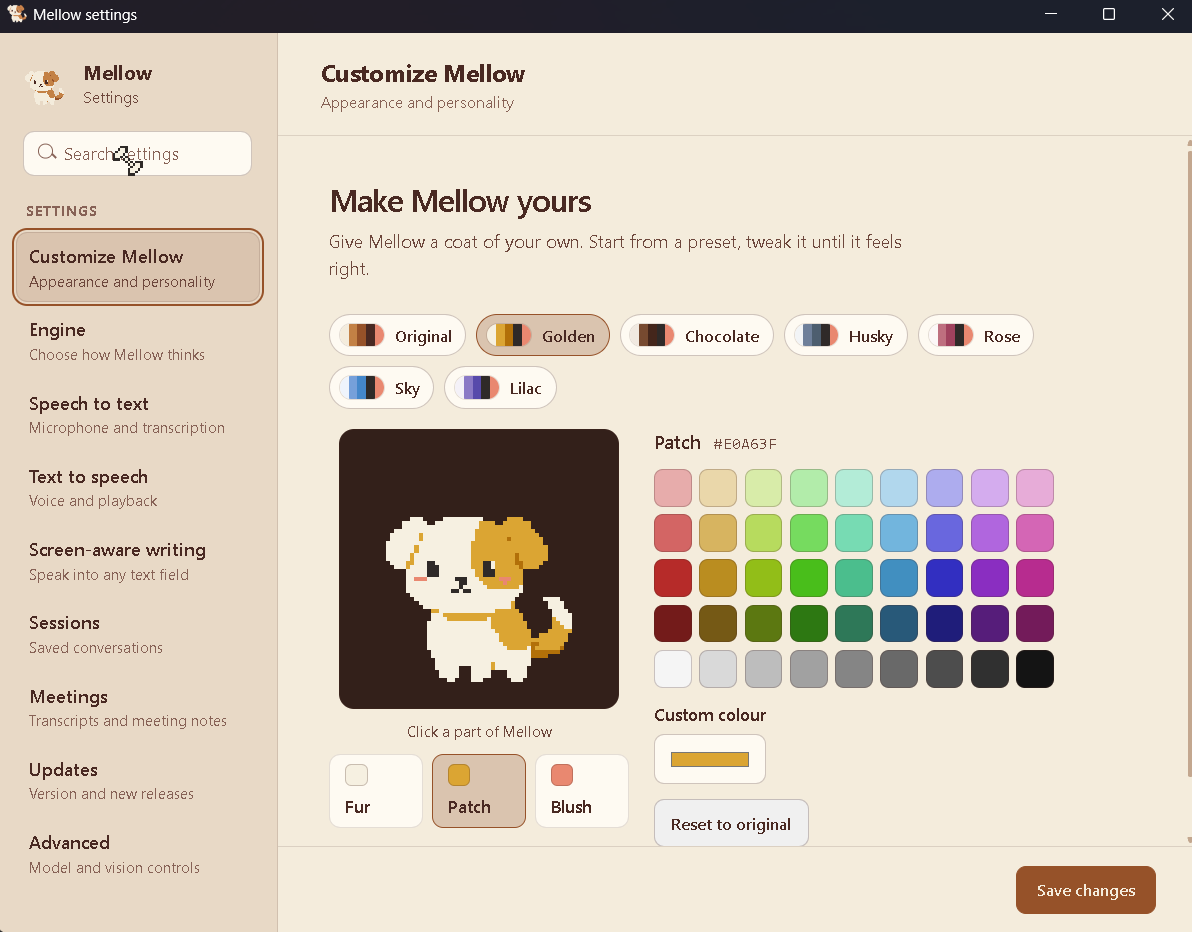
Mellow sits on your wallpaper all day, and one coat does not suit every desktop. Click a part of him in the preview, then pick a colour.
- You choose three things: the fur, the patch, and the blush.
- The rest is handled for you. Shading follows your patch colour, and the eyes and nose stay dark so his face reads clearly on any coat.
- Seven presets to start from: Original, Golden, Chocolate, Husky, Rose, Sky, and Lilac.
- Or any colour you like, from the swatch grid or your own hex value.
- Nothing changes until you save, and Reset to original brings back the coat he shipped with.
Find it under Settings → Customize Mellow.
Meetings, transcripts, and notes
Let Mellow handle the transcript while you focus on the conversation. Available starting with Mellow 1.1.0.
Start a meeting
- Configure Speech to text in Settings with your local model or cloud provider.
- Right-click Mellow and choose Transcribe meeting…. Add an optional title, select your microphone, and choose the output device playing the meeting audio.
- Use Check audio levels (2s) while speaking and playing meeting audio, then click Start transcription.
- Mellow puts on his glasses and starts writing. Use the bar above him to pause or resume; its × button ends the meeting and saves the transcript. You can also use Stop & save in the meeting controls.
- When processing finishes, click View notes, or open Settings → Meetings any time to find the saved meeting.
Transcripts group speech into readable turns. You means your microphone; Other participant means audio from the selected output. During continuous speech the live text can lag a few seconds behind while Mellow waits for a natural pause to split on; no words are dropped. Echo cancellation helps reduce speaker audio leaking into the microphone, but headphones can improve clarity. Only start transcription with everyone's permission.
Tell remote speakers apart (experimental)
Mellow can separate the remote voices into Speaker 1, Speaker 2, and so on, instead of labelling all of them Other participant.
Turn it on in Settings → Meetings under Speaker recognition, with Label remote speakers (experimental). The first time, Mellow downloads two speaker models (about 35 MB) and shows the progress there; until they are ready, meetings record with the usual source labels. The switch can only be changed between meetings.
- Only the remote audio is separated. Your microphone stays You.
- Labels appear while recording and are revised when you stop, so a label can change once the meeting finishes.
- Speech that overlaps or stays uncertain remains Other participant.
- Everything runs on your computer, and the voice measurements are discarded when the meeting ends.
After a meeting, click a speaker label in the transcript to open the speaker editor. Give the speaker a Name, choose Same person as… and Combine speakers to merge two labels, or Separate this speaker to undo that. Giving two speakers the same name does not combine them, and combining is reversible. Regenerate existing notes after renaming or combining so the notes use the new labels.
This is experimental and off by default: its accuracy has not been measured against annotated real meetings yet, so check the labels before relying on them.
Generate structured notes
Open a saved meeting, switch to Notes, and select Generate notes. Mellow uses the answer engine configured in Settings: a local model, cloud provider, or supported agent connection. Transcription itself does not require generating notes.
Notes cover the overview, key topics, decisions, action items, and open questions when present in the conversation. You can leave the page while they generate, or use Regenerate notes to try again. Review generated notes against the transcript before relying on them.
Export or copy
In a saved meeting, click Export, choose Transcript or Notes, then select:
- Markdown (.md) for formatted notes and documentation.
- Plain text (.txt) for a simple, readable copy.
- JSON (.json) for structured data you can use in other tools.
- Copy to clipboard to paste the selected content elsewhere.
Transcripts and notes are exported separately. Saved meetings can also be renamed or deleted from Settings. Audio recordings are not saved; cloud transcription sends audio to your speech provider, and cloud or agent note generation sends the transcript to your chosen answer service.
Install on Windows
- Open the Releases page.
- Download
Mellow-Setup-1.2.0-x64.exefrom the latest release. - Run the installer, then follow Mellow's first-run onboarding.
- Choose local, cloud, agent, or pet-only options for each feature.
From 1.2.0 onwards Mellow can update himself: Settings → Updates checks for a new release and installs it for you. Mellow 1.1.0 predates that, so it needs this one installed by hand.
Already using Mellow? Quit it from the tray before running the new installer. Keep your existing app data to retain settings, downloaded models, and saved meetings; a clean uninstall is only for removing that data.
Mellow currently supports 64-bit Windows. Microphone access is required for voice input and capturing your side of a meeting. For the best motion and pet reactions, enable Animation effects under Windows Settings → Accessibility → Visual effects.
The first public binaries are not code-signed, so Windows SmartScreen may ask you to confirm the installer.
Privacy model
For voice input, Mellow can keep the microphone open while awake to maintain a short pre-roll buffer; push-to-talk selects the audio to transcribe. A meeting you explicitly start captures your microphone and the selected system output, with local echo cancellation to reduce speaker playback in the microphone. Audio stays in memory; saved meetings contain transcripts and notes, not recordings. Cloud transcription sends audio to your selected speech provider. Optional speaker labelling runs entirely on your computer; the voice measurements it compares are discarded when the meeting ends and are never stored with the transcript. Screen capture is request-driven and can be disabled in Settings.
- Local mode: supported inference runs on the computer. No API key is required.
- Cloud mode: only the data needed for the selected feature is sent to the provider you configure.
- Agent mode: requests use the locally installed Claude Code or Codex CLI and its signed-in account.
- Pet-only mode: AI, microphone processing, speech, screen reading, and model downloads remain off.
Provider keys are stored in Mellow's local configuration and are redacted from the app's internal configuration responses. Uninstalling offers an optional clean removal of Mellow's settings, WebView cache, Kokoro data, and Mellow-specific Parakeet cache.
Build from source
Requirements
- Windows 10 or Windows 11, 64-bit
- Node.js 20.19+ or 22.12+
- Rust with the stable MSVC toolchain
- Python 3.12
- Microsoft C++ Build Tools required by the Tauri/Rust toolchain
Development setup
git clone https://github.com/Tarun-032/Mellow.git
cd Mellow

py -3.12 -m venv .venv
.venv\Scripts\python.exe -m pip install -r mellowd\requirements.txt -r mellowd\requirements-build.txt
.venv\Scripts\python.exe scripts\prepare-meeting-aec.py
.venv\Scripts\python.exe scripts\sprites.py

npm ci
npm run tauri dev
Build the Windows installer
Quit running copies of Mellow first. The packaged-helper verification needs port 8765 to be free. The sprite-generation step above creates bone.png, which is intentionally not tracked in Git.
npm run release:windows
The release command freezes the Python service, verifies its native audio/AI stack and security boundaries, builds the frontend and Tauri application, then produces:
src-tauri/target/release/bundle/nsis/Mellow-Setup-1.2.0-x64.exe
Large model weights are deliberately excluded from the repository and installer. They are downloaded only when the user selects the corresponding local feature.
Architecture
Mellow is split into three small layers:
| Layer | Role |
|---|---|
| React + TypeScript | Onboarding, Settings, pet UI, panels, and animations |
| Rust + Tauri | Native windows, tray menu, global shortcuts, cursor tracking, lifecycle, and installer |
| Python + FastAPI | Speech, models, provider adapters, screen understanding, reminders, and desktop actions |
The installed application bundles the Python runtime and native dependencies, so end users do not need Python, Node.js, or Rust.
Meeting capture also bundles a pinned OpenWhispr/WebRTC echo-cancellation helper and Silero speech detection. prepare-meeting-aec.py verifies the helper download and collects its license notices; the release build runs this automatically. Meeting labels distinguish microphone audio (You) from system playback (Other participants), not individual remote speakers. Speaker playback, room acoustics, and simultaneous speech can still affect accuracy.
Contributing
Issues and focused pull requests are welcome. Before opening a pull request, please run the relevant checks:
npm run build
cargo test --manifest-path src-tauri\Cargo.toml --lib
node scripts\bone.check.ts
node scripts\peek.check.ts
node scripts\pomodoro.check.ts
node scripts\updater.check.ts
Please never include API keys, personal screenshots, model weights, generated installers, or local cache data in a contribution.
License
Mellow by Tarun Behera is licensed under the GNU Affero General Public License v3.0, with two additional terms in NOTICE: modified versions must keep the attribution "Mellow by Tarun Behera" with a link to this repository, and must use their own name, icons and pet art.
Pixelify Sans is distributed under the SIL Open Font License 1.1; its license is included at src/pet/pixelify-sans.OFL.txt. Downloaded models and third-party services are not distributed under Mellow's license and remain subject to their respective terms.
Built with care for quiet desktops and busy people.