CronCal
A calendar with repeats, drag to move and two-way Google Calendar sync.
publik verified: the founder reviewed this exact version for malware and approved it
How to install CronCal
Every step written out. No terminal experience needed. Pick your setup.
README
Open in GitHubCronCal
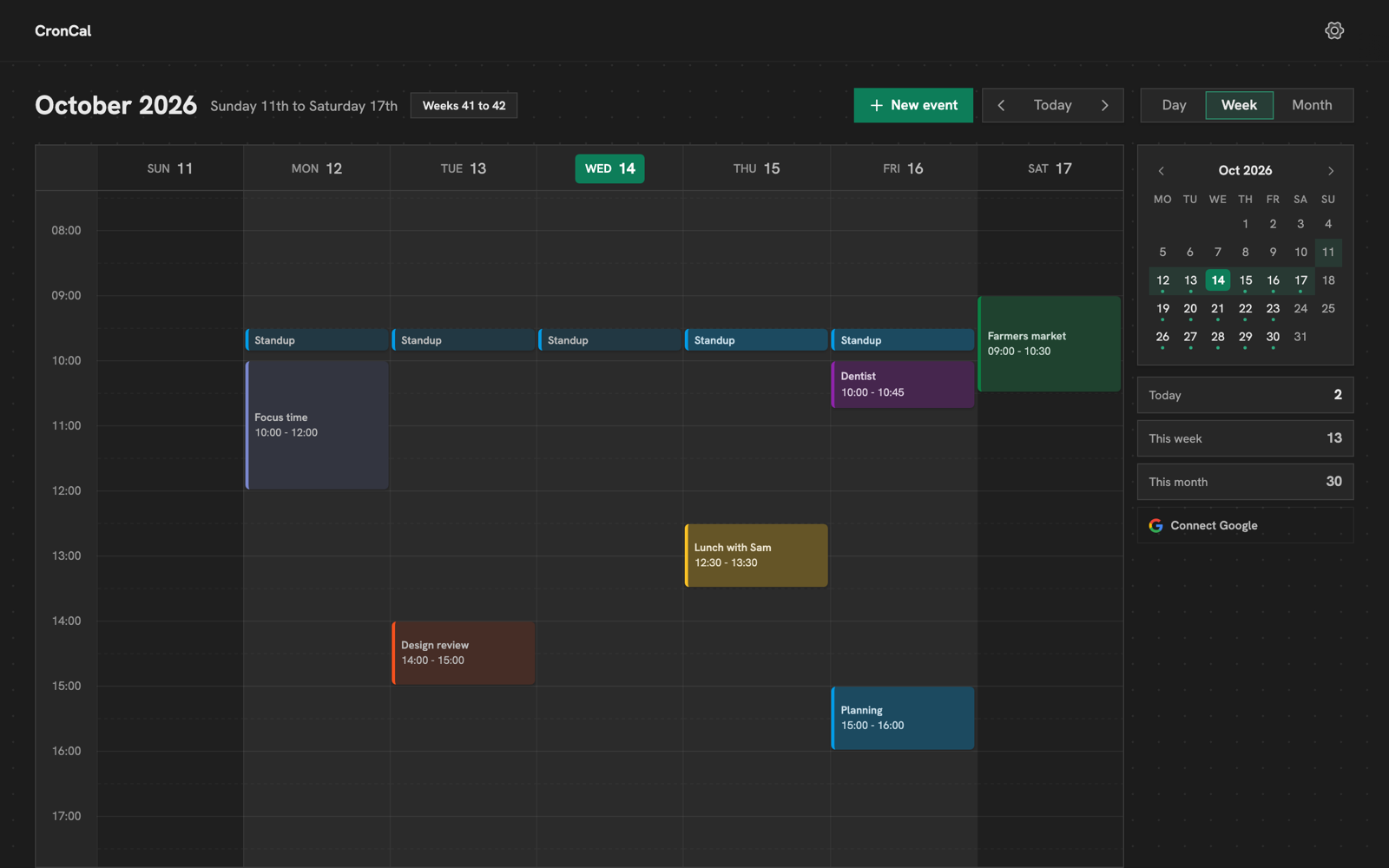
A calendar with repeats, drag to move and two-way Google Calendar sync. It runs on your computer, and your events live in your own free Supabase project. Nothing goes to anyone else's server, except Google's if you connect it.
- Day, week and month, with the week centred on today so the days around it are always in view.
- Drag an event to another time or day, and drag across empty time to make one.
- Repeats every day, weekday, week, two weeks, month or year. Change one day, that day and the ones after it, or all of them.
- Time zones: each event keeps its own, and shows in yours.
- Colours, a type and a priority on every event, and its link, place and people.
- Google Calendar, both ways: your Google events show beside CronCal's, and changes go back to Google.
- Nine themes, and it works on a phone.
Free to use and change for yourself (Licence). To work on the code, see CONTRIBUTING.md.
Connect Supabase
CronCal's first screen, Set up CronCal, walks you through it:
- Make a project. Sign in at supabase.com (a new account first asks you to name an organisation: any name, Free plan). On Create a new project, choose a name, a database password and the region nearest you, then press Create new project.
- Copy the Project URL from the project's home page (Copy beside the address under its name) into CronCal.
- Copy both keys from API Keys: the Publishable key (
sb_publishable_) and the one under Secret keys (sb_secret_; press the eye to show it). Press Connect. - Add the tables. Press Copy the setup, open the SQL Editor (if Supabase shows a note about snippets, press Understood), paste, press Run, then Check again in CronCal.
- Make your account.
Already use Todoer? Give CronCal the same project: after step 4 it asks you to sign in with your Todoer account instead of making one.
Then switch off sign-ups, so the project stays yours: in Supabase, Authentication, Sign In / Providers, switch off Allow new users to sign up, then Save changes. Strangers could see none of your events anyway; Settings reminds you until it's off.
Leave Enable Data API on (Integrations, Data API): CronCal talks to your project through it.
The secret key is saved only on your computer, in a file only your account can read:
- Mac:
~/Library/Application Support/CronCal - Windows:
%LOCALAPPDATA%\CronCal - Linux:
~/.config/croncal
Google Calendar
CronCal connects through a Google Cloud client of your own, so no one else's app sits between you and your calendar. It's free. Sign in at console.cloud.google.com with your Google account, then:
- Make a project. Open the project picker at the top, press New project, name it CronCal, and press Create. Make sure it's the project selected.
- Turn on the Calendar API. Search the console for Google Calendar API, open it, and press Enable.
- Name the app. In the menu, open Google Auth platform, then Branding. If it says Google Auth platform not configured yet, press Get started: App name CronCal, your email as the support and contact email, External under Audience, then agree to the policy and press Create.
- Publish it, so the connection doesn't end after seven days: open Audience, press Publish app, then Confirm. Only you will use it, so it needs no review.
- Make the client. Open Clients, press Create client, choose Web application, and under Authorized redirect URIs press Add URI and paste
http://localhost:3102/api/auth/google/callback(CronCal's Settings shows it, ready to copy). Press Create, and keep the window with the Client ID and Client secret open. - Connect. In CronCal, open Settings, paste both under Google Calendar, press Save, then Connect. Choose your account. Google says it hasn't verified the app, because it hasn't been through Google's review: press Advanced, then go on to CronCal, tick calendar access, and continue.
Your Google events then show beside CronCal's, with an eye in the sidebar to hide them. With Sync to Google Calendar on in its form, a new event goes into Google Calendar instead of CronCal.
Open it again
Double-click Start CronCal.command (Mac) or Start CronCal.cmd (Windows) in the croncal folder. It opens CronCal, or the copy already running.
To open it like an app: Safari's File → Add to Dock, or Chrome's Install icon in the address bar.
Your data
- Back up with Settings → Download my data: every CronCal event in one file. Supabase's free plan keeps no backups, so do it now and then. Google's events stay in Google. CronCal can't read the file back in yet.
- A paused project: Supabase pauses a free project after a week unused. Press Restore project there, then Try again in CronCal.
- Another project: stop CronCal, delete
config.jsonfrom the folder above, and start it again. Your events stay in the old project.
Update
Close CronCal's window first. Your events and settings are kept.
- Downloaded: delete the
croncalfolder (rm -rf croncalon Mac or Linux,rmdir /s /q croncalon Windows), then run the download line again. - With publik or Git: in the
croncalfolder, in Terminal (Command Prompt on Windows), rungit checkout main && git pull && npm install && npm start.
If an update changes the tables, CronCal asks you to run the setup again. Nothing is lost.
Something not working
- "Supabase isn't answering": check you're online, and that the project isn't paused.
- "Another program is using port 3102": start on another port with
npm start -- --port 3106. Google's redirect URI must then use that port too. - Google says "redirect_uri_mismatch": the client's redirect URI in Google Cloud must be exactly the one CronCal's Settings shows,
http://localhost:3102/api/auth/google/callbackunless you changed the port. - Forgot your password: press Forgot password? on the sign-in screen and paste your project's secret key.
- Windows says npm isn't recognised: open a new Command Prompt after installing Node.
- PowerShell says "running scripts is disabled": use Command Prompt, or type
npm.cmdfornpm.
Remove it
- If you connected Google: in Settings press Disconnect, and delete the Google Cloud project if you made one only for CronCal.
- Delete the
croncalfolder, and the settings folder above. - If you added it like an app: delete Safari's from the Applications folder in your home folder, or open Chrome's and choose Uninstall CronCal from its ⋮ menu.
- If you're done with Supabase, and Todoer doesn't use the same project, delete the project there.
Licence
PolyForm Noncommercial 1.0.0: use it, change it and share it for yourself or any non-commercial purpose. Don't sell it or use it in a business.
Copyright Eshaan Mehta.