Whiteboard
Organize Excalidraw boards and plan ideas on your Mac, locally and offline.
publik verified: the founder reviewed this exact version for malware and approved it
How to install Whiteboard
Every step written out. No terminal experience needed. Pick your setup.
README
Open in GitHub

Whiteboard
A calm macOS home for your Excalidraw boards.
Brainstorm freely, then plan what to do next. Local-first, no accounts.
Features
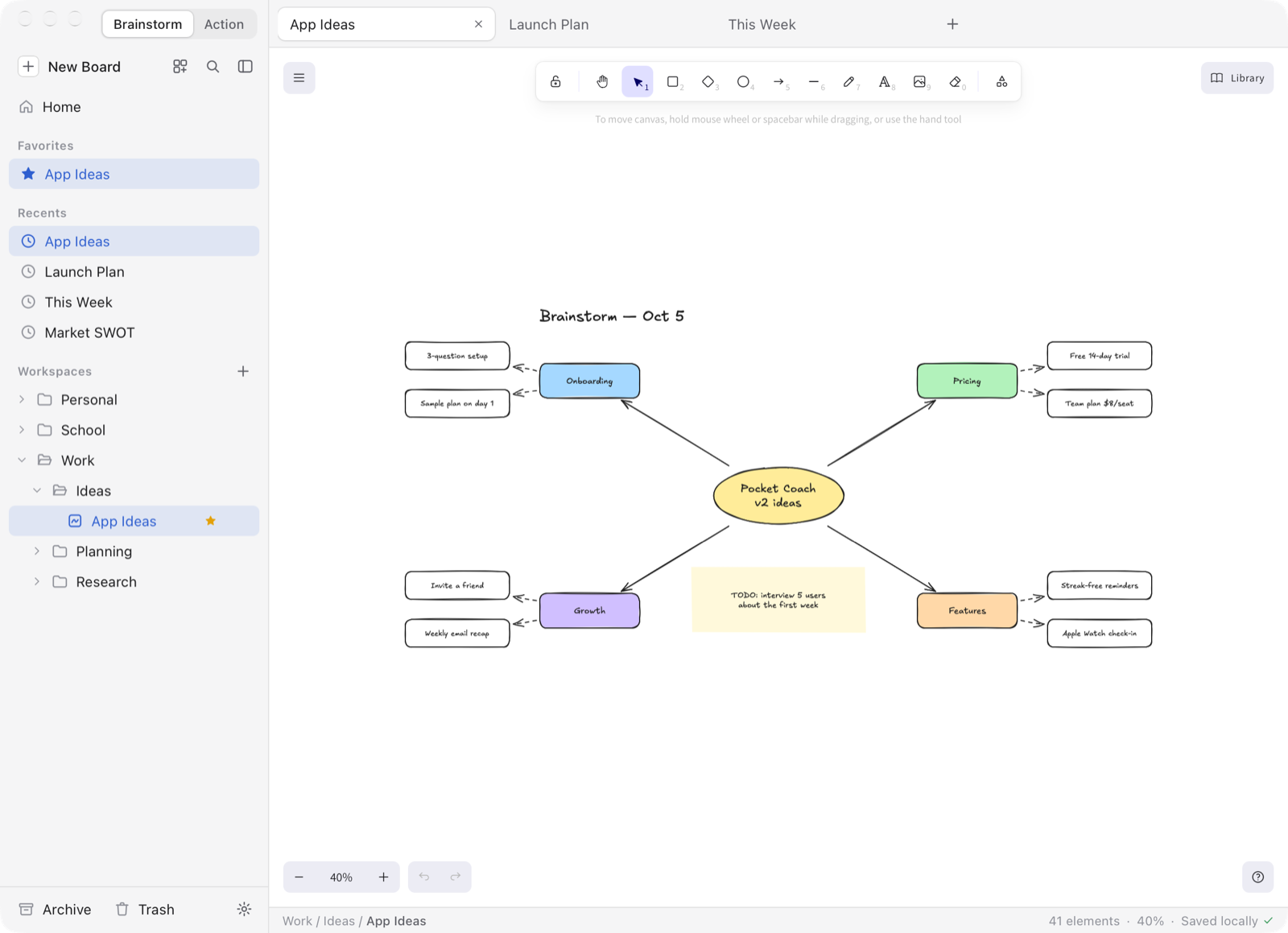
- The real Excalidraw editor. It uses the official
@excalidraw/excalidrawpackage, unmodified, with the same tools, shortcuts, libraries and file format. - Your boards, organized. Workspaces and folders (ordinary Finder folders), tabs, favorites, recents, archive, trash, thumbnails, and ⌘K search that also looks inside boards.
- Never lose work. Atomic autosave, local version history, and conflict detection when a file changes outside the app.
- Visual references. Paste a YouTube, Instagram or web link to get a preview card. Press ⇧⌘2 to drop a screenshot straight onto the board.
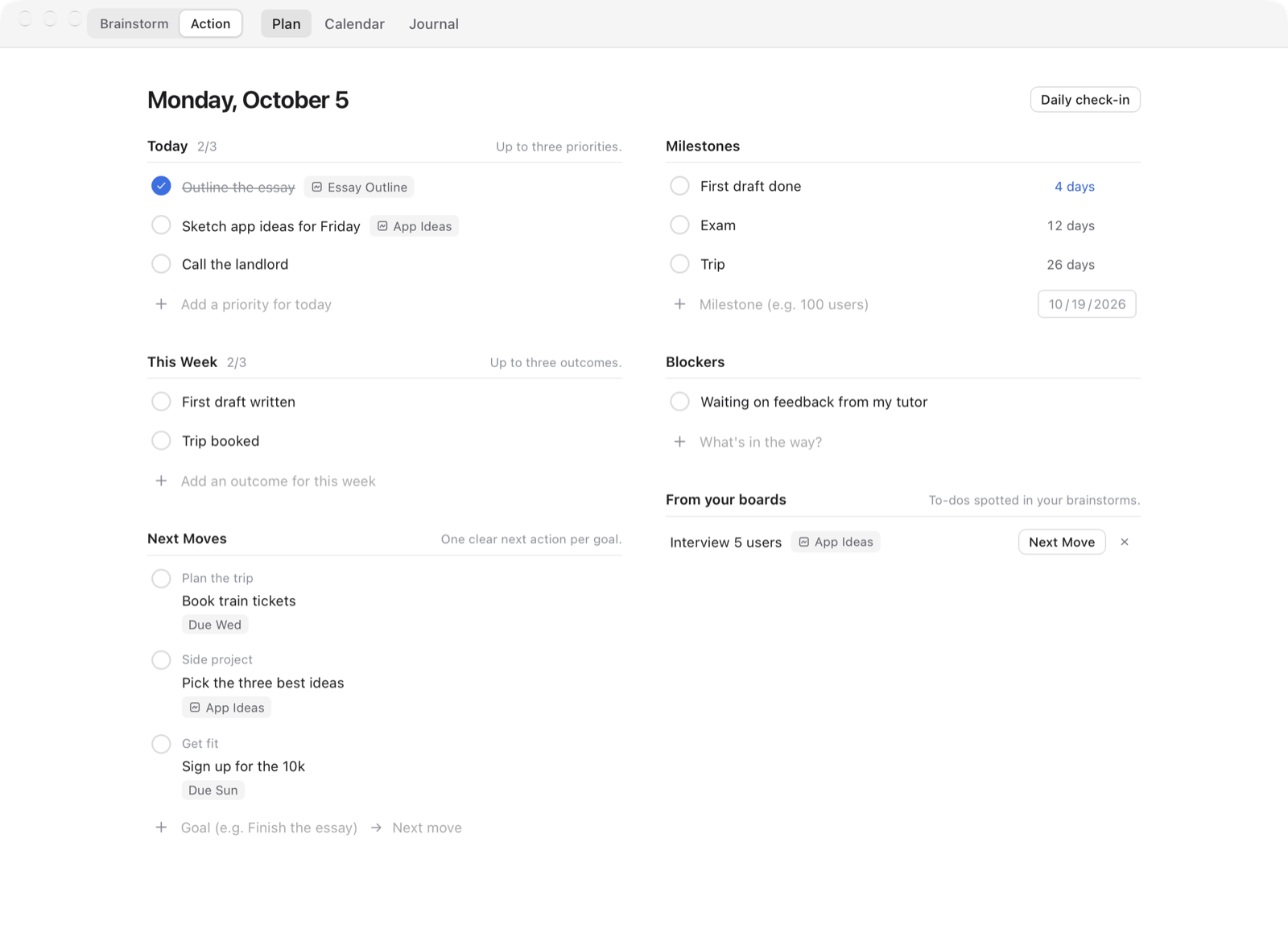
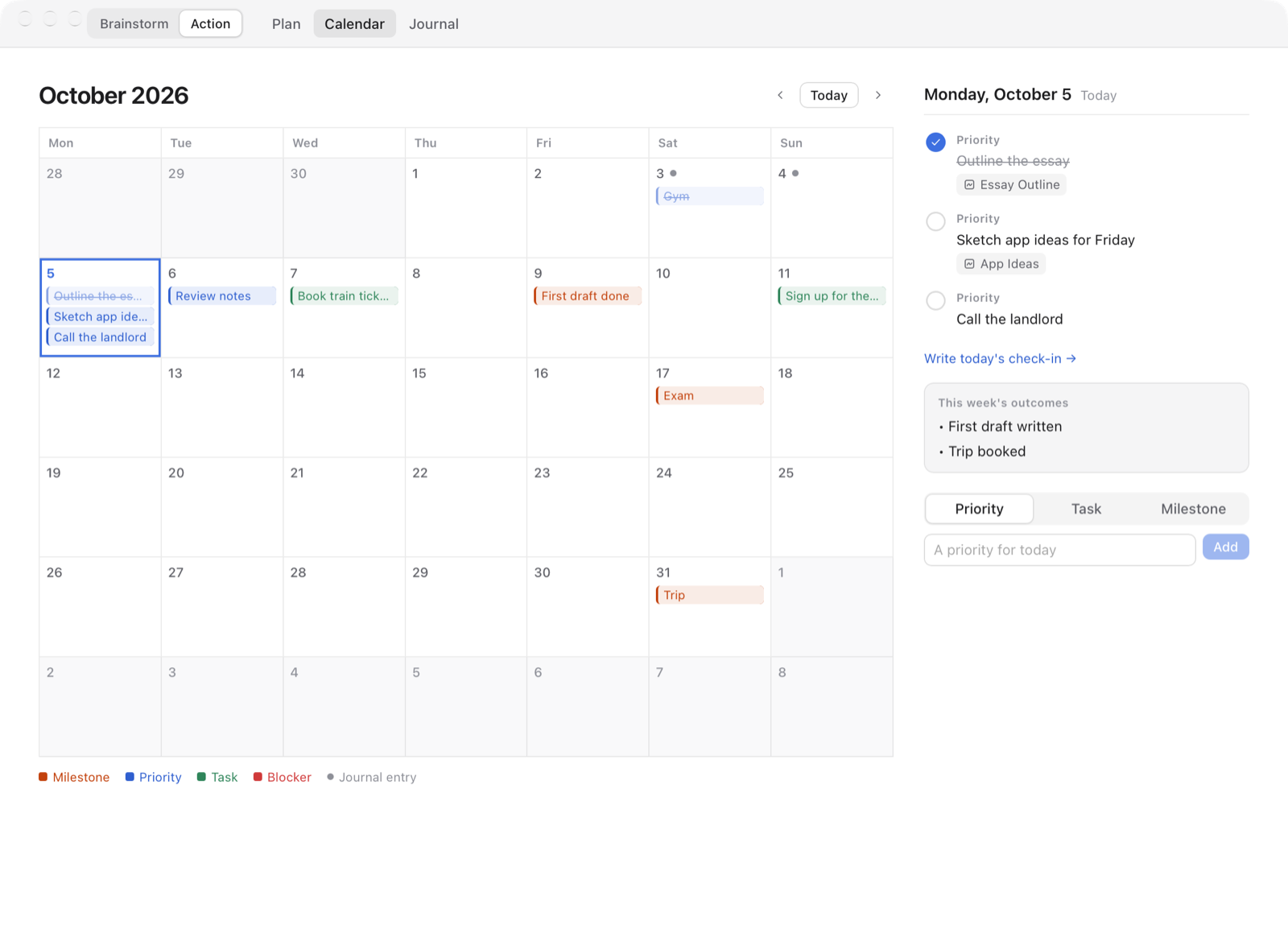
- Action. A separate, deliberately small planning view: today's 3 priorities, the week's outcomes, next moves, milestones, blockers, a calendar of everything with a date, a daily check-in, and a Journal. Selections on a board can be sent to Action, with a link back.
- Local and private. Works offline. No accounts, cloud, analytics or AI by default.
| Action — Plan | Action — Calendar |
|---|---|
 |  |
Brainstorm and Action
Whiteboard has two separate sides, switched with the Brainstorm | Action control at the top-left (⇧⌘A):
- Brainstorm is the Excalidraw workspace, unchanged. There's no task UI on the canvas.
- Action is a plain execution view:
- Today: up to 3 priorities. Unfinished ones from earlier days wait under "Unfinished from earlier" until you move them to today.
- This Week: up to 3 outcomes.
- Next Moves: goal → one next action. When you finish a move, Whiteboard asks for the goal's next one, or you can mark the goal done.
- Milestones: a date with a countdown ("First draft — 9 days").
- Blockers.
- Daily check-in: three optional questions. After 6 PM (configurable) it's a quiet nudge in Action, never a popup.
- Calendar: a month view of priorities planned for each day, milestones, tasks with due dates, blockers, what you finished, and journal entries. Click a day to see it in full or plan it.
- Journal: check-ins and finished items in date order, grouped by week with a one-line summary.
Brainstorm → Action: select shapes, text or groups, then right-click → Send to Action… (added to Excalidraw's own menu), ⌥⌘A, or ⌘K → Make Priority / Next Move / Milestone / Blocker. The item keeps a link to the board and the exact shapes.
Action → Brainstorm: click an item's board chip to open the board with those shapes selected and centered. Any item can be linked to a board from its ⋯ menu; the picker suggests related boards.
Suggestions (never applied without a click):
- On Home, under "Tidy up": cleaner names for messy boards
(
Untitled Whiteboard 7→Onboarding Flow) and folder moves for loose boards. - In Action, under "From your boards": to-dos found in your boards (
TODO:,Next:,[ ],☐). - Related boards in the board picker, and weekly summaries in the Journal.
These are simple local rules over your boards' text. In Settings → Action you
can optionally use a model running on this Mac via Ollama
(127.0.0.1:11434) for board names and weekly summaries. It's off by default,
and nothing leaves your computer.
Action data lives in …/com.local.whiteboard/action.json (plus .bak) and
is never written into .excalidraw files.
Visual references and screenshots
- Paste a link onto the canvas (⌘V), drop one from a browser, or use
⌘K → Insert Web Reference /
/embed <url>. YouTube, Instagram and other websites become a compact card made of ordinary Excalidraw elements (rounded rectangle, thumbnail image, text), grouped together. Cards save in the.excalidrawfile and appear in PNG/SVG exports. Each element storescustomData.wbRef = { cardId, url, kind, role }(Excalidraw's official metadata field), and the card's rectangle has a standard Excalidrawlink, so the link still works in plain Excalidraw. - Links in your own text are clickable. Any text or shape label that
contains a URL (
https://…orwww.…) gets a standard Excalidraw link automatically. ⌘-click any linked shape or text to open it. - Open a card by double-clicking it or clicking Excalidraw's link icon. Clicking or dragging never opens it. Right-click a card for Open Link, Copy URL, Refresh Preview, Duplicate, Remove Preview, Convert to Plain Link and Delete.
- Screenshots: ⇧⌘2 (works system-wide; you can turn that off in Settings →
Capture), ⌘K → Capture Screenshot / Window / Full Screen, or
/shot. This uses macOS's own selection UI: drag a region, press Space for window mode, or Esc to cancel. The image is inserted into the active board as a normal Excalidraw image and stored inside the board file. The temp file is deleted at once, and nothing is saved to the Desktop. macOS requires the Screen Recording permission for this. Whiteboard asks once and then links to System Settings. Unsigned local builds may need the permission granted again after a rebuild. - Clipboard images: ⌘V works as in Excalidraw (also when the pointer isn't
over the canvas). ⌘K → Insert Image from Clipboard (or
/paste) reads the macOS clipboard directly.
Remote requests (privacy)
Whiteboard makes network requests only when you insert or refresh a link:
| Link | Requests |
|---|---|
| YouTube | youtube.com/oembed (YouTube's documented public endpoint: title and channel) and the video thumbnail from i.ytimg.com |
| one GET of the post page. Instagram serves no preview tags to plain requests, so the page is then loaded once in a hidden, invisible web view to read its image and caption (no login, no tokens). If that fails you get a clean fallback card. | |
| Any other site | one GET of the page (title / Open Graph tags), its preview image, and its favicon |
If a site can't be resolved, a DNS lookup of apple.com (no HTTP request)
distinguishes "offline" from "site unreachable". Board contents are never
sent anywhere, and there are no analytics. Previews are cached in
…/com.local.whiteboard/link-cache/, and the thumbnail is embedded in the
board, so existing cards look the same offline. A link pasted while offline
becomes a basic card ("Preview unavailable offline") with no retries.
Architecture
Tauri 2 (Rust)                         Web frontend (React 19 + TypeScript + Vite)
├─ files.rs     atomic writes,         ├─ editor/      one <Excalidraw/> per open tab + BoardSession
│               folder tree, moves,    │               (autosave, conflicts, history, thumbnails)
│               conflict detection     ├─ shell/       sidebar, tabs, status bar, palette, dialogs
├─ appdata.rs   history, thumbnails,   ├─ lib/         board operations, commands/shortcuts,
│               trash, app paths       │               templates, exports, library, lifecycle
├─ search.rs    text index over boards ├─ state/       zustand store + state.json persistence
├─ webref.rs    link previews + cache  ├─ platform/    IPC wrappers + native file pickers
│                                      └─ action/      Action view, calendar, suggestions, Journal
├─ capture.rs   screenshots, clipboard image, ⇧⌘2
└─ menu.rs      native macOS menu bar
- Rust owns every disk write. Board writes are atomic (temp file → fsync →
rename), refuse non-Excalidraw content, and refuse to overwrite a file whose
modification time changed since Whiteboard last read it (
CONFLICT). - Each open tab keeps its own live Excalidraw instance, so switching is
instant and undo history is per board. Inactive editors are hidden and
inert. Restored tabs mount lazily on first activation. - The shell's React state (zustand) never holds canvas data; Excalidraw's
onChangeonly touches plain fields inBoardSession, so drawing performance is unaffected.
How Excalidraw is integrated
- Uses the official
@excalidraw/excalidraw0.18.1 npm package, unmodified (no fork). The toolbar, menus, shortcuts, libraries, export dialog, themes, fonts and file format are Excalidraw's own. - Fonts:
scripts/copy-excalidraw-assets.mjscopies the package's font files intopublic/fonts, andwindow.EXCALIDRAW_ASSET_PATHpoints at the app bundle, so fonts work fully offline. - Native file dialogs for Excalidraw's own features: Excalidraw does its
file I/O through
browser-fs-access, which uses the File System Access API when present.src/platform/nativeFilePickers.tsprovidesshowOpenFilePicker/showSaveFilePickerbacked by native macOS dialogs and Rust file commands. Insert image, export PNG/SVG, and library import/export therefore work natively without changing Excalidraw. UIOptionsdisables only Excalidraw's browser-specific file actions (Open, Save to file, Export JSON). The main menu gets native Open… / Save As… / Version History in their place.- Boards are saved with Excalidraw's
serializeAsJSON(..., "local")and loaded with itsrestore(). Whiteboard writes nothing extra into.excalidrawfiles. - Drag and drop: Excalidraw handles image, SVG and library drops itself.
Whiteboard only intercepts dropped
.excalidrawfiles so they open as tabs instead of replacing the current board. The web view can't see a dropped file's path, so a small Rust locator (locate_file: name, size and mtime, then Spotlight) finds the original. If it can't, a copy is imported. - Shortcut conflict: Excalidraw uses ⌘K for "add link". Whiteboard uses ⌘K for search, so "Add Link to Selection" is available from the ⌘K palette (and from Excalidraw's element toolbar).
Where data lives
| What | Location |
|---|---|
| Boards and workspaces | ~/Documents/Whiteboard/ (ordinary folders and .excalidraw files; changeable in Settings) |
| App metadata and session (favorites, recents, archive list, tabs, viewports, prefs) | ~/Library/Application Support/com.local.whiteboard/state.json (+ .bak) |
| Version history | …/com.local.whiteboard/history/<path-hash>/<epoch-ms>.excalidraw |
| Thumbnails | …/com.local.whiteboard/thumbs/<path-hash>.png |
| Trash | …/com.local.whiteboard/trash/<id>/ (only "Delete Permanently" / "Empty Trash" remove files) |
| Personal library | …/com.local.whiteboard/library.excalidrawlib |
| Your templates | …/com.local.whiteboard/templates/*.excalidraw |
| Link preview cache | …/com.local.whiteboard/link-cache/*.json |
| Action items, check-ins, dismissed suggestions | …/com.local.whiteboard/action.json |
| Window size and position | managed by tauri-plugin-window-state |
Archive is metadata only: archived boards stay where they are on disk and are hidden from the workspace tree. If you rename or move boards inside Whiteboard, favorites, history and thumbnails follow them. If you rename or move them in Finder, the boards still show up in the tree, but their favorite/archive flags are dropped.
History: a snapshot every 10 minutes while you edit (configurable), on every ⌘S, before the first edit of each session, and before any restore, reload or conflict overwrite. Snapshots are thinned out to one per hour after 2 hours and one per day after a day, kept for 60 days, with at most 80 per board.
Development
Requirements: Node 20+, Rust (stable), Xcode Command Line Tools.
npm install
npm run app:dev        # run the desktop app with hot reload
npm run dev            # UI only, in a browser, against an in-memory dev backend
npm run typecheck
cd src-tauri && cargo test
npm run dev in a plain browser automatically uses src/dev/mockBackend.ts
(dev builds only), which imitates the Rust commands with an in-memory
filesystem stored in localStorage. It's handy for UI work.
Build
npm run app:build
Output:
src-tauri/target/release/bundle/macos/Whiteboard.appsrc-tauri/target/release/bundle/dmg/Whiteboard_1.0.0_aarch64.dmg
The build is unsigned. To open it the first time: right-click
Whiteboard.app → Open. You can also run
xattr -dr com.apple.quarantine Whiteboard.app.
.excalidraw files are registered with the "Alternate" rank. To make
Whiteboard the default app: Finder → Get Info on any .excalidraw file → Open
with: Whiteboard → Change All….
Keyboard shortcuts
| Action | Shortcut |
|---|---|
| New board | ⌘N or ⌘T |
| New board from template | ⌥⌘N |
| New folder | ⇧⌘N |
| Open file | ⌘O |
| Save now (+ history snapshot) | ⌘S |
| Save As | ⇧⌘S |
| Close board / reopen closed board | ⌘W / ⇧⌘T |
| Search boards & commands | ⌘K |
| Switch tabs | ⌘1 … ⌘9, ⌃⇥ / ⌃⇧⇥ |
| Toggle sidebar | ⌘\ |
| Focus mode | ⇧⌘F (Esc exits) |
| Version history | ⌘Y |
| Quick Look selected board (sidebar/cards) | Space |
| Settings | ⌘, |
| Shortcut list | ⌘/ |
| Export image options (Excalidraw) | ⇧⌘E |
| Capture screenshot onto the board | ⇧⌘2 (system-wide) |
| Switch Brainstorm / Action | ⇧⌘A |
| Send selection to Action | ⌥⌘A |
| Slash commands on the canvas | / then shot, embed <url>, window, screen, paste |
| Open a link card | double-click |
All other Excalidraw shortcuts work as usual. Press ? on the canvas for
Excalidraw's full list.
Licensing
Whiteboard is released under the MIT License. It is an independent project, not affiliated with or endorsed by Excalidraw.
Excalidraw is MIT-licensed (© 2020 Excalidraw). The bundled fonts are under
the SIL Open Font License 1.1, except Comic Shanns, which is MIT. Full texts and
attributions are in LICENSES/ and inside the app under
Settings → About → Licenses. The Whiteboard icon is original artwork and does
not use the Excalidraw logo.