cue
The AI copilot that floats over your screen in meetings
AI: local or publik API
Where cue’s AI runs, and what it costs
Prices are for one typical use: one request of about 1,500 words sent and 375 words back. A higher quality score is better.
On your computer
- Price
- Free per use. Your computer does the work.
- Runs with
- whisper.cpp, Whisper
- Memory
- —
- Quality
- —
publik API
- Price
- $0.0010 per use, $1.00 per 1,000 usespublik-fast, the level cue uses most
- Quality
- GLM-5.3 Flash: 42
- Setup
- Built in. No key to paste; linking your publik account gives $0.05 of free use, once.
Your own key
- Price
- $0.0006 per use, $0.55 per 1,000 usesGLM-5.3 Flash at OpenRouter’s list price, before its fee for buying usage
- Quality
- GLM-5.3 Flash: 42
- Setup
- Open a provider account, add a card, paste the key into cue.
Quality and price, side by side
| Model | Quality | Per 1,000 uses |
|---|---|---|
| On your computer (Ollama, 4-bit download size) | ||
| Granite 4.2 3B2.2 GB | 9 | $0 |
| Phi-4 Mini2.5 GB | 6 | $0 |
| Llama 3.1 8B4.9 GB | 7 | $0 |
| gpt-oss 20B14 GB | 9 | $0 |
| Gemma 4 31B20 GB | 19* | $0 |
| Qwen3.5 35B-A3B24 GB | 19* | $0 |
| publik API | ||
| publik-fastGLM-5.3 Flash · cue | 42 | $1.00 |
| publik-balancedMiMo-V2.6-Pro | 46 | $10.00 |
| publik-smartGPT-6 Sol | 48 | $18.00 |
Quality: Artificial Analysis Intelligence Index v4.3.2, read 2026-09-22 (publik API models 2026-09-25); * = estimated by Artificial Analysis. Sizes: the Ollama library, read 2026-09-22.
What you pay for
- On your computer: nothing per use. You pay in disk space, memory and electricity, at lower quality.
- publik API: publik’s published price for each use, in dollars, from your publik balance. It is above the model’s cost; the difference runs publik and pays the app’s builder.
- Your own key: the provider’s price, billed to an account you keep with the provider.
How to install cue
Every step written out. No terminal experience needed. Pick your setup.
README
Open in GitHubcue
An open-source AI copilot that floats over your screen — sees what you see, hears your meetings, and stays hidden from screen shares.
A free, self-hosted alternative to Cluely. Bring your own AI key (OpenAI · Anthropic · Google Gemini · Azure AI Foundry . OpenAI-compatible endpoints).
[!IMPORTANT] Please read this first. cue tries to stay out of screen recordings/shares, but this is best-effort, not guaranteed — on macOS 15.4+ Apple can let modern capture tools see it anyway, on Windows 10 builds older than 2004 it degrades to a black box instead of true exclusion, and a phone camera always can. Using a hidden assistant during a proctored exam, job interview, or recorded meeting may break that platform's rules and, in some places, consent laws. cue is built for legitimate uses — your own notes, studying, accessibility, and practice. You are responsible for how you use it.
What it does
cue floats a small glass panel on top of everything. It takes three separate inputs — your screen, your microphone, and your meeting audio (what the other person says) — and uses an AI model to help you in real time.
| Feature | How to trigger | What it uses |
|---|---|---|
| Smart assist | ⌘ ⇧ ↵ (macOS) or Ctrl Shift Enter (Windows) | your screen + recent conversation |
| What should I say? | ⌘ ↵ (macOS) or Ctrl Enter (Windows) | meeting audio + your mic |
| Recap | button | the whole conversation |
| Ask anything | type + ↵ | your screen + conversation |
| Solve a coding problem | ⌘ H (macOS) or Ctrl H (Windows) | your screen only |
| Smart toggle | pill in the box | switches to a smarter (slower) model |
It's a copilot for live meetings ("what do I say to that?") and coding problems (screenshot → full solution), and it's designed to be invisible in screen shares so it stays your private assistant.
Platform support
| macOS | Windows 11 / 10 2004+ | |
|---|---|---|
| Screen + coding help | ✅ | ✅ |
| Your mic (the You channel) | ✅ | ✅ |
| Meeting audio (the Them channel) | ✅ macOS 14.4+ | ✅ |
| Hidden from screen shares | ⚠️ best-effort, weaker on macOS 15.4+ | ✅ WDA_EXCLUDEFROMCAPTURE |
| Permissions to grant | Microphone and Screen Recording | Microphone only |
[!NOTE] Meeting audio needs macOS 14.4+. Capturing the other person — what powers What should I say? and Recap — uses system-audio loopback. On Windows that works out of the box. On macOS it relies on ScreenCaptureKit, which cue enables through Chromium's
MacLoopbackAudioForScreenShareandMacSckSystemAudioLoopbackOverrideswitches; on older macOS the Them channel stays silent while your screen and the You channel keep working.
First launch — the 1-minute setup
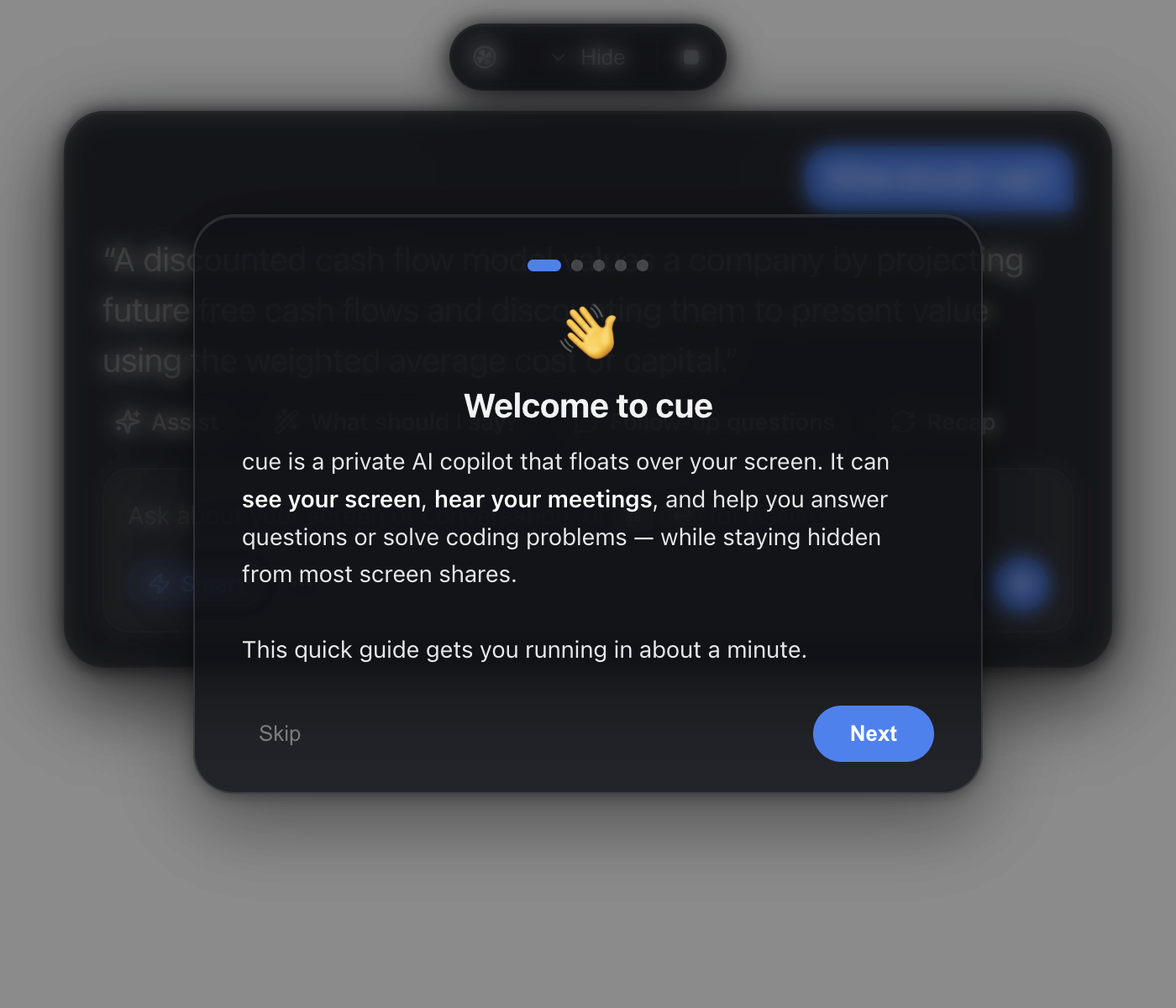
When cue opens the first time, a built-in tutorial walks you through everything below. You can reopen it anytime by clicking the help icon (top-left of the pill). Here's the same thing in writing.
Step 1 — Grant permissions
cue can't help until your OS lets it see and hear. When you first use a feature you'll usually be prompted — click Allow. If no prompt appears, grant access manually.
On macOS — two grants. System Settings → Privacy & Security → Microphone and Screen Recording → turn on cue. macOS may ask you to quit & reopen cue — let it. Screen Recording covers both the screenshot features and meeting-audio capture.
On Windows — one grant. Only the microphone needs permission: Settings → Privacy & security → Microphone → turn on Microphone access and Let desktop apps access your microphone. Screenshots and meeting audio need no permission at all — they work immediately, using Windows loopback capture.
Step 2 — Pick how cue answers: publik API (default) or your own key
The packaged builds from the Releases page run on publik API by default. You need no account and no key to open cue. The first-run guide shows a short disclosure. It states the price: every request costs 50% of the model's published list price. It also states the average cost: most people spend under $2 a month. It also states where your data goes: your prompts and screenshots go through publik's servers to a shared model account, and publik never trains on them. Nothing is set up until you press Continue with publik API. A new computer starts at $0.00. Settings → Keys shows the balance line and a Link this computer & pick a plan button. Linking this computer to your publik account gives $0.05 of free use, once. Then add a plan or a pack to keep going. Use my own key instead switches to any of the providers below at any time. cue never replaces a key you have already entered.
A build from source has no publik app token unless you export
PUBLIK_APP_TOKEN; without one the publik option does not appear and cue works
exactly as before. The release workflow embeds the token from the
PUBLIK_APP_TOKEN repository secret (it is a publishable identifier that lets
the gateway attribute installs to cue — it holds no balance and is not a key).
Step 2 (alternative) — Add your AI key (bring your own)
cue uses your own API key, so it's free to run (you only pay your AI provider for what you use). Click the ... button in the input box (or press ⌘ , on macOS / Ctrl , on Windows) to open Settings, pick a provider, and paste your key:
| Provider | Get a key | Notes |
|---|---|---|
| Cerebras | cloud.cerebras.ai | Fast OpenAI-compatible chat at https://api.cerebras.ai/v1. No speech-to-text — add an OpenAI, Gemini, or Deepgram key for listening. |
| OpenAI | platform.openai.com/api-keys | One key does everything — but for the listening features the key must have Whisper / audio access (a "restricted" project key that only allows chat will give a 403 on transcription). |
| Anthropic (Claude) | console.anthropic.com | Great for screen & coding help. Claude has no speech-to-text, so add an OpenAI or Gemini key too if you want the listening features. |
| Google Gemini | aistudio.google.com/apikey | One key does chat + transcription. |
| Azure AI Foundry | ai.azure.com | Paste your endpoint plus your key in Settings. Azure OpenAI: https://<resource>.openai.azure.com/openai — AI Foundry: https://<host>.cognitiveservices.azure.com (cue appends /openai/v1 itself). The model fields are your deployment names. No speech-to-text — add an OpenAI or Gemini key for listening. |
| DeepSeek | platform.deepseek.com/api_keys | OpenAI-compatible chat API. No speech-to-text — add an OpenAI or Gemini key too if you want the listening features. |
| Groq | console.groq.com | Fast OpenAI-compatible chat. Groq Whisper can also handle transcription if you pick Groq on the Audio tab. |
| Custom | Your endpoint or gateway | Any OpenAI-compatible Chat Completions endpoint. The API key is optional for unauthenticated local servers. |
To use an OpenAI-compatible endpoint, select Custom and configure its Base URL, API key, and Fast/Smart model IDs. Custom endpoints handle LLM requests only; listening continues to use Deepgram, OpenAI, or Gemini credentials.
| Example | Base URL | Model |
|---|---|---|
| OpenClaw local gateway | http://127.0.0.1:18789/v1 | openclaw/default |
| Ollama | http://127.0.0.1:11434/v1 | An installed Ollama model ID |
Your key is stored only on your computer (in cue-data.json) and is sent only to that provider. cue has no server and collects nothing.
Optional — transcribe locally with whisper.cpp
Open Settings → Audio, choose Local, and download a model. base.en is the recommended English default; all 30 models supported by the official whisper.cpp download script are available, including multilingual, quantized, large, turbo, and TinyDiarize variants.
Local mode is independent from the chat provider, so you can use local speech-to-text with OpenAI, Anthropic, or Gemini chat. The selected model loads once when listening starts, serves both the You and Them channels, and unloads only after queued speech has been transcribed when listening stops.
- Audio inference stays on your computer and audio is never written to a temporary file.
- Model files are downloaded only when you ask, support cancel/resume, and are checked against pinned byte counts and SHA-256 hashes.
- Local mode never silently sends audio to a cloud fallback. A local failure is reported without sending the audio elsewhere.
- Models are stored under Cue's Electron user-data directory and can be imported or deleted from Settings.
Optional — word-by-word transcription with only a Gemini key
Deepgram and OpenAI keys stream transcripts word by word automatically. A Gemini key transcribes sentence by sentence unless you pick Gemini explicitly under Settings → Audio, which switches it to the gemini-3.5-transcribe-live streaming model (its running hypothesis gets revised as you speak, which some people find jumpy — that's why it's opt-in).
Meeting memory
cue keeps what it hears. Every transcript turn is saved to meetings.json in cue's data folder as it lands, so a crash or a quit mid-meeting loses nothing: relaunch within 30 minutes and the transcript is restored to the sidebar and Recap / Follow-up questions carry on from where the conversation was. When you stop listening, cue writes notes for the meeting with your chat model — summary, key points, decisions, action items, follow-ups — and the summaries of your last three meetings are given to the model as background for later conversations (the live transcript always takes priority). A 30-minute silence, the clear-transcript button, or a stale meeting at launch closes the meeting. The newest 50 meetings are kept; nothing leaves your computer except the transcript sent to your chosen provider to write the notes.
Optional — tailor answers to your background
In Settings, paste your résumé or professional background into Résumé / professional background. cue uses it as the factual reference for career-related answers and says when the résumé does not provide a detail. You can clear it anytime.
Step 3 — The Zoom setting (only needed for Zoom)
cue is hidden from most screen-share tools automatically — Google Meet, Microsoft Teams, and QuickTime need nothing. Zoom has a specific setting that decides whether it respects cue's "don't capture me" flag:
Zoom → Settings → Share Screen → Advanced → Screen capture mode → choose "Advanced capture with window filtering."
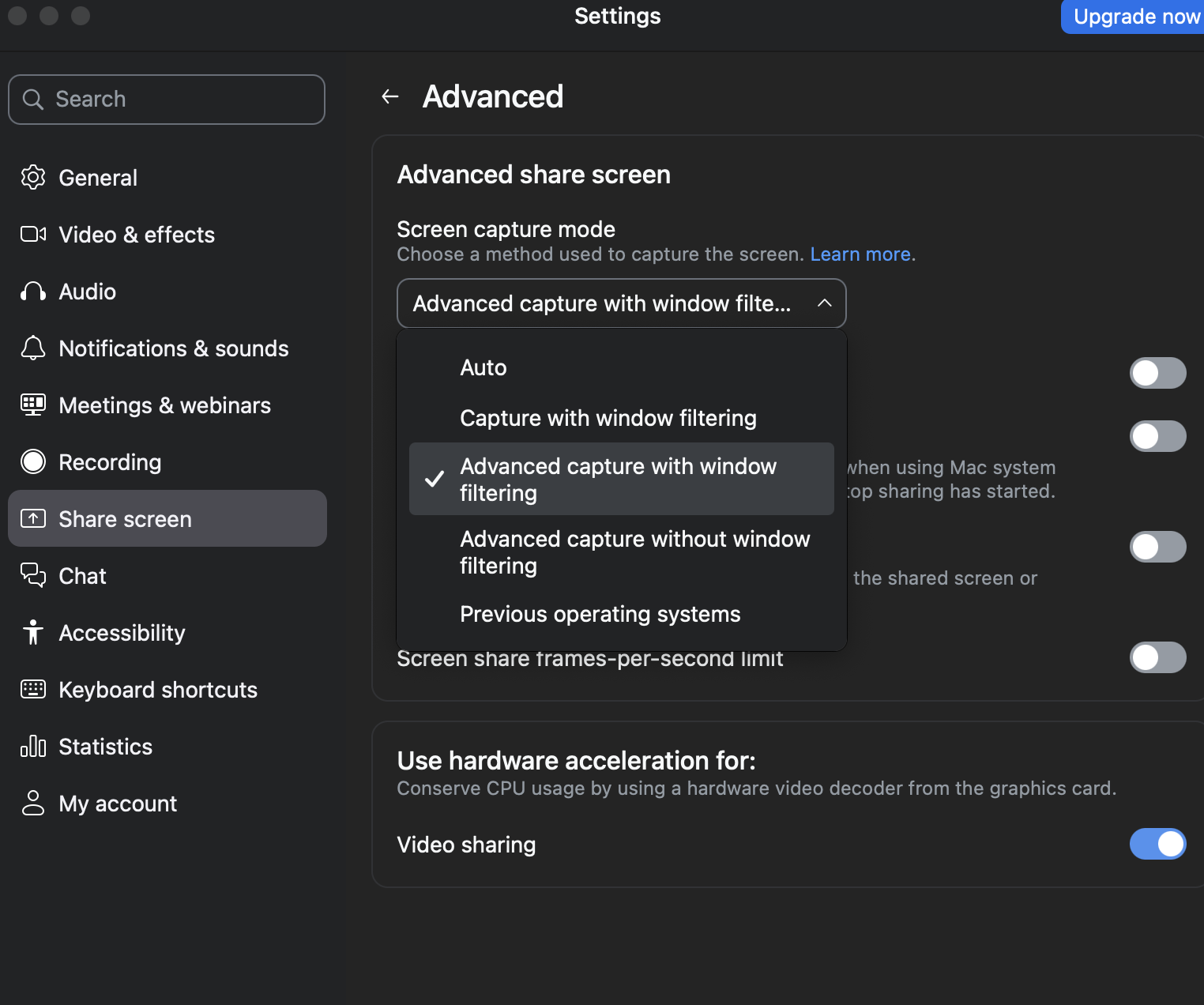
Why: the "...with window filtering" modes tell Zoom to leave out windows that mark themselves as private — which is exactly what cue does. The "Advanced capture without window filtering" mode grabs the raw screen and will show cue, so avoid it.
How to use it
On Windows, press
Ctrlwherever⌘appears below. cue's own UI relabels the keys to match your OS.
⌘↵— What should I say? Suggests what to say next from the conversation. Works from anywhere.⌘⇧↵— Smart assist. The do-the-smart-thing key. On a coding problem it solves it; in a conversation it tells you what to say. Works from anywhere.⌘H— Solve what's on screen. Screenshots a coding problem and returns the approach, code, and time/space complexity.- Start session / End session (top bar) — start or stop listening to a meeting. The green dot means it's live.
- Type a question in the box and press
↵to ask about your screen or conversation. - Smart — flip it on for a smarter, more thorough model; off for fast and cheap.
- Hide collapses the panel to just the top bar. Drag cue around by the top pill. Quit with
⌘⇧Xon macOS orCtrlShiftXon Windows.
The panel is see-through and click-through — the empty space around it never blocks the app behind it.
How it works (under the hood)
cue is an Electron app. Everything runs locally except the calls to your chosen AI provider.
The three inputs are kept completely separate:
- Screen — captured with Electron's
desktopCapturer(full-resolution screenshots, taken only when a feature needs one). - Your mic ("You") —
getUserMedia→ downsampled to 16 kHz audio → transcribed. - Meeting audio ("Them") —
getDisplayMedialoopback capture of your system's output audio, kept on its own channel so cue knows who said what. Windows only — Chromium doesn't implement loopback capture elsewhere, so on macOS this stream comes back video-only and the channel stays silent.
Both audio streams are transcribed by the independently selected speech provider (local whisper.cpp, Deepgram, OpenAI, or Gemini) and fed, with an optional screenshot, to your chat model. Responses stream into the panel word-by-word.
When Local transcription is selected, Cue runs one persistent whisper-server sidecar bound to 127.0.0.1 on a temporary port with a random request path. Voice activity detection creates bounded in-memory utterances with pre-roll, and both channels share a serialized inference queue because one Whisper context must not process concurrent requests. Stop immediately ends new audio capture, drains the current queue for a bounded period, then terminates the sidecar.
The invisibility is a single window flag — setContentProtection(true) — which the OS enforces:
- macOS: sets
NSWindowSharingNone, asking the window server to exclude cue from capture streams. On macOS 15.4+ Apple lets some capture tools ignore it, which is why it's best-effort (see the disclaimer at the top). - Windows: sets
WDA_EXCLUDEFROMCAPTUREviaSetWindowDisplayAffinity, and the compositor drops the window from every capture path. Windows 10 builds before 2004 fall back toWDA_MONITOR, which renders a black box rather than truly excluding.
It's the same mechanism DRM apps and Zoom's own toolbar use. It is not a GPU trick or a special overlay layer. Set CUE_NO_PROTECT=1 to disable it while debugging.
main process ──┬─ overlay window (frameless, transparent, always-on-top, content-protected)
               ├─ screenshot capture (desktopCapturer)
               ├─ speech-to-text (Whisper / Gemini)      ── "You" + "Them" channels
               └─ LLM streaming (OpenAI / Anthropic / Gemini / Custom)
renderer ──────┴─ the glass UI + mic capture + system-audio loopback
Troubleshooting
"It says give access, but I already gave access." (macOS)
Local transcription says the runtime is not prepared.
Packaged releases include the runtime. If you are running from source, run npm run prepare:whisper once and restart Cue. On macOS, install CMake and Xcode command-line tools first.
Local transcription says the model is missing or invalid. Open Settings → Audio, select the model, and choose Download. A cancelled download can be resumed. If verification fails repeatedly, delete the partial/model file from the same screen and download it again.
A large local model is slow or runs out of memory.
Try base.en, tiny.en, or a quantized q5/q8 model. Model size in Settings is the download size, not a guarantee of runtime RAM use; larger models require substantially more memory and CPU/GPU time.
"It says give access, but I already gave access." You probably granted an older build. Because the app is ad-hoc signed, a rebuild changes its identity and macOS stops honoring the old grant (the checkmark can linger). Toggle cue off and on in System Settings → Screen Recording, or remove and re-add it.
"What should I say?" or "Recap" never hear the other person (macOS). Expected — meeting audio is Windows-only (see Platform support). Your own mic still transcribes, so those features see the You side of the conversation but never the Them side.
cue has no dock or taskbar icon — how do I quit it?
That's deliberate; it stays out of your way. Press Ctrl Shift X (⌘ ⇧ X on macOS). If the shortcut didn't register because another app claimed it, end the cue (or electron) process in Task Manager / Activity Monitor.
npm start crashes with Cannot read properties of undefined (reading 'getPath').
Something in your environment set ELECTRON_RUN_AS_NODE=1 — some editors and terminals do, notably VS Code's integrated terminal. That makes Electron boot as plain Node, so require('electron') returns a path string instead of the real module. Clear it and relaunch: unset ELECTRON_RUN_AS_NODE (PowerShell: Remove-Item Env:\ELECTRON_RUN_AS_NODE).
A feature returns "403" / "no access to model." Your API key is restricted. Most often it's an OpenAI project key that only allows chat models — it works for screen/coding help but 403s on transcription (Whisper). Fix: enable audio/Whisper on the key, use an unrestricted key, or add a Gemini key (cue falls back to it for transcription).
Listening does nothing / no transcript. Check Settings shows a transcription-capable key (OpenAI with Whisper, or Gemini). On macOS, also make sure Screen Recording is granted (meeting audio needs it). On Windows, make sure Let desktop apps access your microphone is on — the top-level Microphone toggle alone isn't enough.
A Custom provider request cannot connect.
Confirm the Base URL includes the endpoint's /v1 path when required, the selected model ID exists on that endpoint, and the local gateway is running. Custom provider credentials are intentionally not reused for speech-to-text.
cue shows up in my Zoom share. Set Zoom's Screen capture mode to "Advanced capture with window filtering" (see Step 3). And remember: on macOS 15.4+ this can still fail — it's best-effort.
"cue is damaged and can't be opened."
Run xattr -cr /Applications/cue.app in Terminal once (see Install → Option A).
Privacy
- No Cue accounts, hosted service, or telemetry. cue collects nothing.
- Your API keys live in a local file (
cue-data.json) and are sent only to the provider you chose. - When Custom is selected, its API key and LLM request data are sent to the Base URL you configured.
- Your optional résumé text also lives in
cue-data.jsonand is sent with each model request to your selected AI provider. It is stored as plain text; clear it in Settings to remove it. - In Local transcription mode, microphone and meeting audio stay on your computer. In cloud transcription modes, audio is sent only to the selected speech provider.
- Audio utterances and the current transcript stay in memory; Cue does not write captured audio to disk. Downloaded local model files remain on disk until you delete them.
- Screenshots are sent to your selected chat provider only when a feature needs the screen.
Contributing
Issues and PRs welcome. cue is intentionally small and readable — main.js (app + capture + AI), renderer/ (the UI), src/ (providers). No build step for the source (plain HTML/CSS/JS).
Credits & license
Built as an open-source study of how tools like Cluely and Interview Coder work. Modeled on the open-source clones pickle-com/glass and sohzm/cheating-daddy.
Local transcription uses whisper.cpp, distributed under the MIT License. Its license notice is included in packaged runtimes.
License: GPL-3.0-or-later.